To help ensure cross-platform function and coherent site visuals, Open Source Translations uses a system of Templates from which translations are built from, using the Style Sheets tool for uniform font, sizing, spacing and other design elements.
The first step to adding a translation via Google Docs is done within Google Docs itself. Open your document in Google Docs, click “File”, “Share”, and then “Publish to Web”.
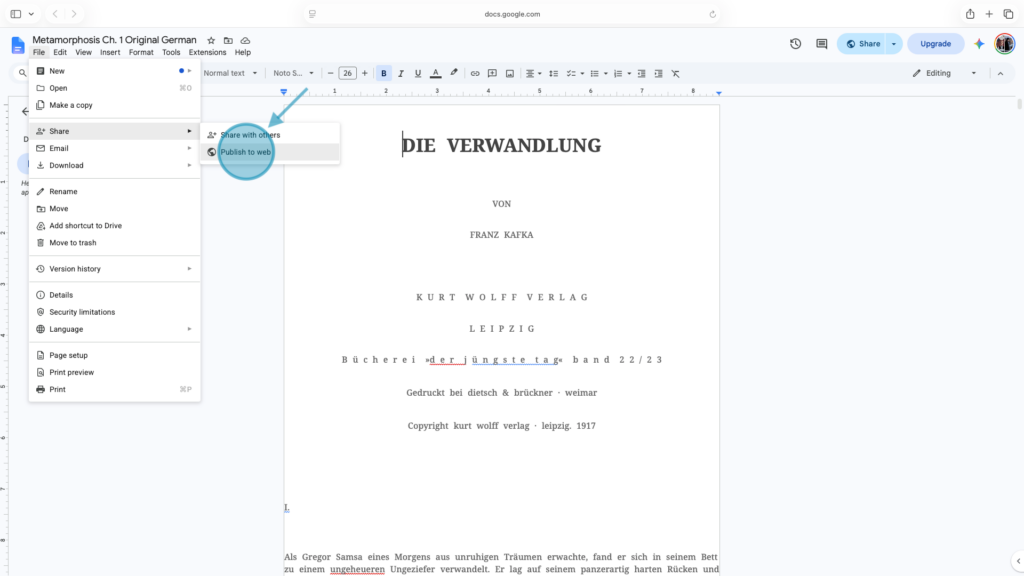
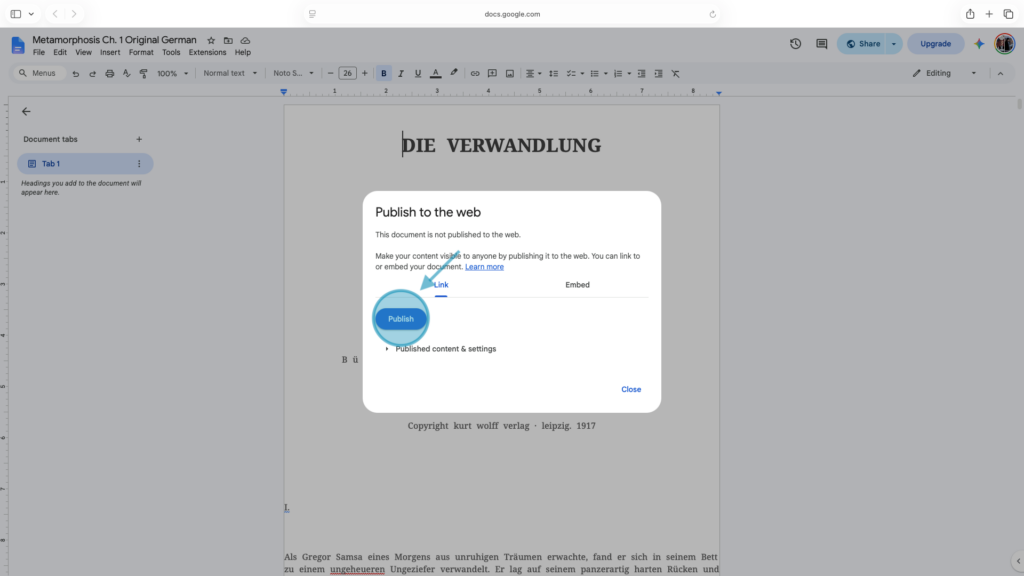
This will open google’s “Publish to web” pop up, where you will need to click the blue “Publish” button.
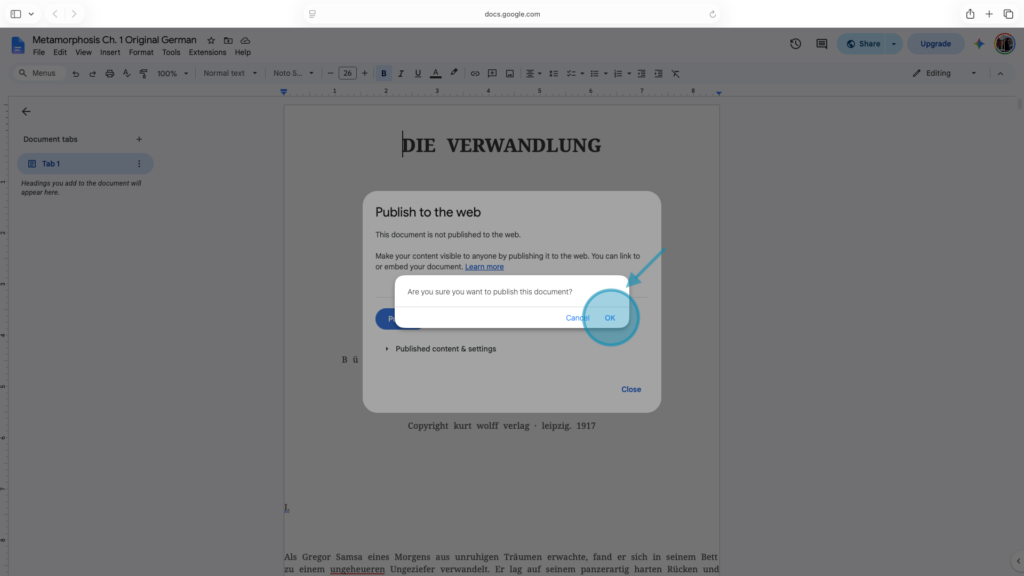
You may be asked if you are sure if you want to publish, click “OK”.
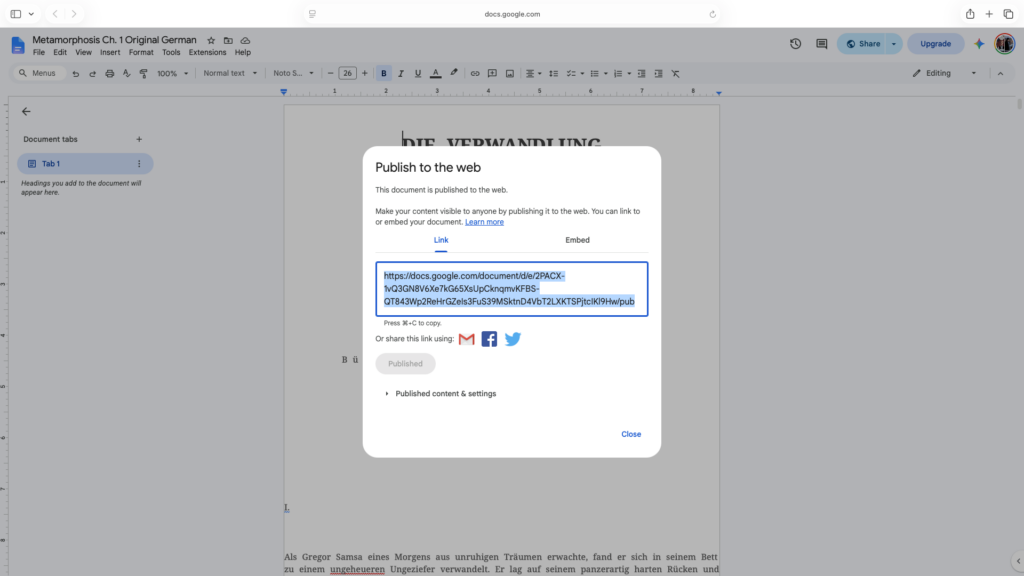
This confirmation will lead you to a pop up where you can copy the link to your document, which you will use to embed your work onto the “Open Source Translations” website.
The next steps for adding your translation are done on the “Open Source Translations” website.
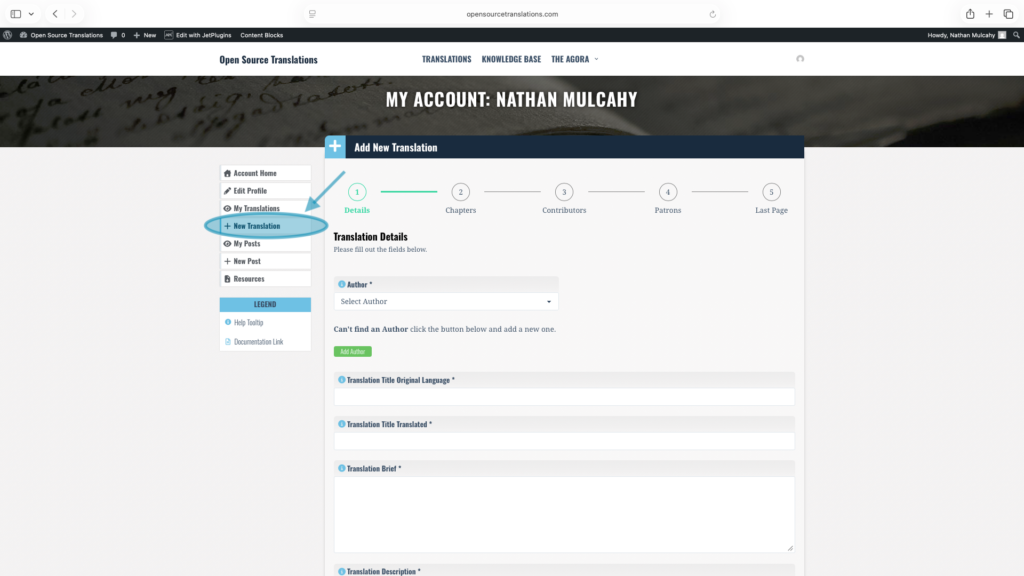
On the “My Account” page, navigate to “+ New Translation”, here you will fill out the base information for the translation you want to add.
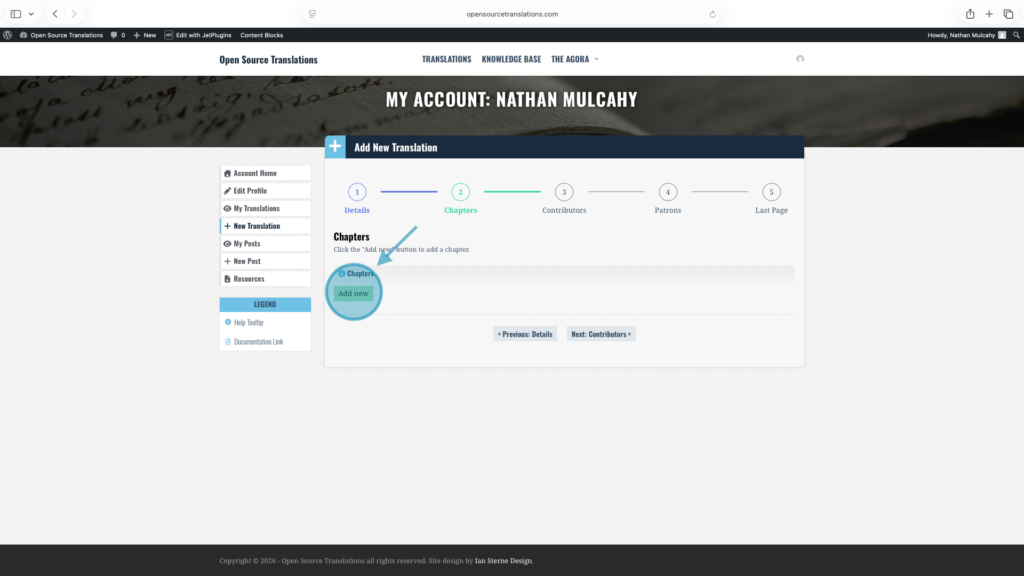
On the next page of the “Add New Translation” interface, you will need to click on the green “Add New” button.
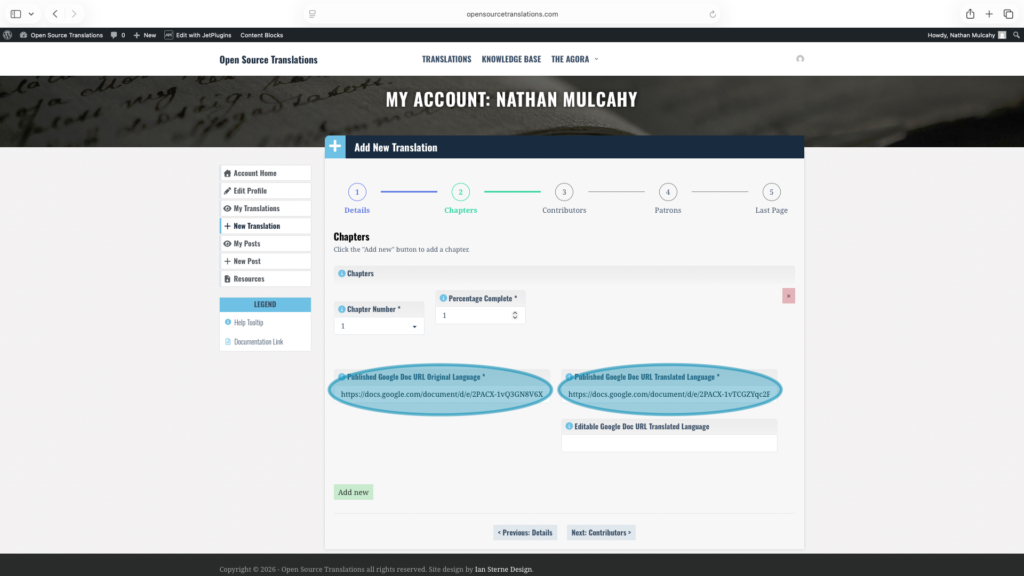
Here you can fill out the required fields, and the paste the link you copied from your published Google Docs work into the appropriate box, for either the original language or your translated text.
You can now continue with adding the details for your translation, to understand the next page “Contributors” view “Working with Contributors”.
All Templates are stored under Resources in the Accounts page. New Templates are added per release schedule to better allow all languages and types of work, and can also be requested by translators.
Click HERE to access Templates from Resources.
Click HERE to request a new Template.


